⌘Code
EZ Gif to WebP
Animated Gifs to Animated WebP Converter
A Python CLI tool that converts videos, GIFs, and images into WebP using ffmpeg + libwebp, with controls for quality, lossless mode, trimming, FPS, looping, and export path defaults.
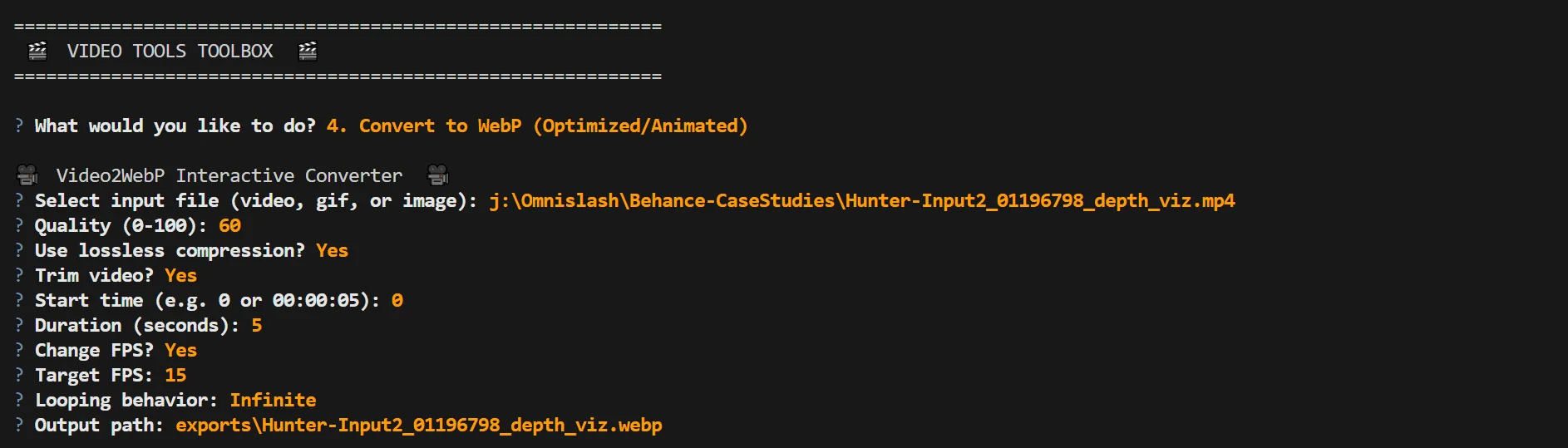

Dual Mode: CLI Flags or Interactive Wizard
If you run the tool with an input path, it behaves like a classic CLI.
If you run it without arguments, it launches an interactive prompt flow
1
def main():2
parser = argparse.ArgumentParser(description="Convert video/image to WebP")3
parser.add_argument("input", nargs="?", help="Input file path")4
# ... quality, lossless, trim, fps, loops ...5
args = parser.parse_args()6
7
if not args.input:8
interactive_mode()9
return
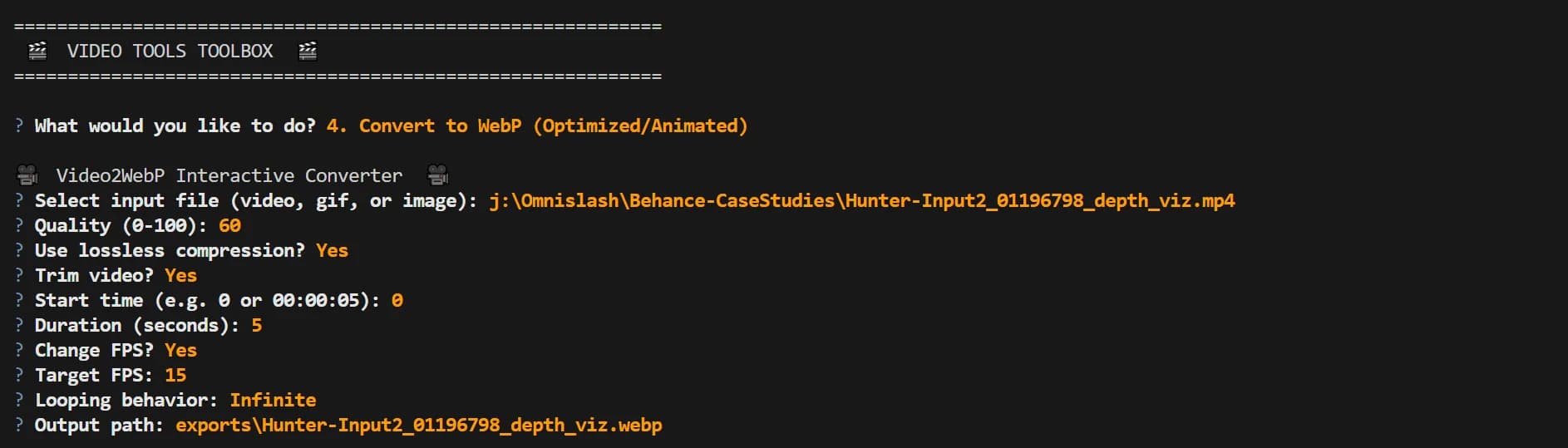
Smart “Exports” Output Path
By default, output files go into an exports/ directory, matching the input filename (but .webp).
1
def get_default_export_path(input_path: Path) -> Path:2
export_dir = Path("exports")3
return export_dir / f"{input_path.stem}.webp"
Video to Animated WebP: Trim, FPS, Looping, Quality/Lossless
The tool builds an ffmpeg command dynamically based on user options:
- ss start time (fast seeking)
- t duration (trim)
- vf fps=... for output frame rate control
- loop for loop behavior (0 = infinite)
- lossless 1 or -q:v quality for lossy
1
cmd = ["ffmpeg", "-y"]2
3
if start_time:4
cmd += ["-ss", str(start_time)]5
if end_time:6
cmd += ["-t", str(end_time)]7
8
cmd += ["-i", str(input_path)]9
10
filters = []11
if fps:12
filters.append(f"fps={fps}")13
if filters:14
cmd += ["-vf", ",".join(filters)]15
16
cmd += ["-c:v", "libwebp"]17
18
if lossless:19
cmd += ["-lossless", "1"]20
else:21
cmd += ["-q:v", str(quality)]22
23
cmd += ["-loop", str(loops), "-preset", preset, str(output_path)]
Static Image to WebP
For stills, it uses the same codec (libwebp) with either lossless or quality-based compression.
1
cmd = ["ffmpeg", "-y", "-i", str(input_path)]2
cmd += ["-c:v", "libwebp"]3
4
if lossless:5
cmd += ["-lossless", "1"]6
else:7
cmd += ["-q:v", str(quality)]8
9
cmd += ["-preset", preset, str(output_path)]
Windows Drag-and-Drop Batch Script
Alongside the Python tool, there’s a .bat designed for speed on Windows:
- Detects ffmpeg locally or via PATH
- Supports multiple files dragged at once
- Logs per-file ffmpeg output to *.webp.log
- Scales + sets FPS + quality defaults for quick “web-ready” results
gif-to-webp.bat
1
@echo off2
setlocal EnableExtensions3
4
REM Always run from the .bat’s folder5
cd /d "%~dp0"6
7
REM --- Find ffmpeg ---8
set "FFMPEG=%~dp0ffmpeg.exe"9
if exist "%FFMPEG%" goto :got_ffmpeg10
11
where ffmpeg >nul 2>nul12
if errorlevel 1 goto :no_ffmpeg13
set "FFMPEG=ffmpeg"14
15
:got_ffmpeg16
17
REM ============================================================18
REM If user drag and dropped one or many files, process them all!19
REM Windows passes each dropped file as an argument: %1 %2 %3 ...20
REM ============================================================21
if not "%~1"=="" goto :batch_args22
23
REM Otherwise, run interactive loop24
goto :main_loop25
26
27
:batch_args28
set /a OK=029
set /a FAIL=030
31
echo.32
echo Batch mode: processing dragged files...33
echo.34
35
:batch_loop36
if "%~1"=="" goto :batch_done37
38
call :process_one "%~1"39
if errorlevel 1 (40
set /a FAIL+=141
) else (42
set /a OK+=143
)44
45
shift46
goto :batch_loop47
48
:batch_done49
echo.50
echo Batch complete.51
echo Succeeded: %OK%52
echo Failed : %FAIL%53
echo.54
55
choice /m "Do you want to process another GIF"56
if errorlevel 2 goto :done57
goto :main_loop58
59
60
:main_loop61
call :process_one62
REM even if it fails, still ask to continue63
echo.64
choice /m "Do you want to process another GIF"65
if errorlevel 2 goto :done66
goto :main_loop67
68
69
:done70
echo.71
echo All done.72
echo.73
pause74
exit /b 075
76
77
REM ============================================================78
REM Subroutine: process_one79
REM - If called with an argument, uses it as input (drag/drop)80
REM - If no argument, prompts user for a path81
REM - Saves output next to the .bat (same directory)82
REM - Writes a per-file log for debugging83
REM ============================================================84
:process_one85
setlocal EnableDelayedExpansion86
87
REM --- Get input (arg or prompt) ---88
set "IN=%~1"89
90
:need_input91
if not defined IN (92
echo.93
echo Paste the full path to a GIF, or drag a GIF into this window:94
set /p "IN=GIF path: "95
)96
97
REM If user hit Enter with nothing, ask again98
if not defined IN (99
echo.100
echo No input provided. Try again.101
goto :need_input102
)103
104
REM Strip quotes if any105
set "IN=%IN:"=%"106
107
if not exist "%IN%" (108
echo.109
echo ERROR: File not found:110
echo "%IN%"111
endlocal & exit /b 1112
)113
114
REM Base name from input115
for %%F in ("%IN%") do (116
set "BASE=%%~nF"117
)118
119
REM Output saved next to the .bat120
set "OUT=%~dp0%BASE%.webp"121
122
REM Per-file log saved next to the .bat123
set "LOG=%~dp0%BASE%.webp.log"124
125
REM --- Encoding knobs ---126
set "FPS=15"127
set "WIDTH=800"128
set "Q=60"129
set "COMP=6"130
131
echo.132
echo Input : "%IN%"133
echo Output: "%OUT%"134
echo Log : "%LOG%"135
echo.136
137
REM Run ffmpeg and write log138
"%FFMPEG%" -hide_banner -y -i "%IN%" -vf "fps=%FPS%,scale=%WIDTH%:-1:flags=lanczos" -c:v libwebp -loop 0 -q:v %Q% -compression_level %COMP% -an -vsync 0 "%OUT%" > "%LOG%" 2>&1139
140
if errorlevel 1 (141
echo.142
echo ERROR: ffmpeg failed for:143
echo "%IN%"144
echo Check the log:145
echo "%LOG%"146
endlocal & exit /b 1147
)148
149
echo Done!150
echo Saved: "%OUT%"151
endlocal & exit /b 0152
153
154
:no_ffmpeg155
echo.156
echo ERROR: ffmpeg not found.157
echo Install ffmpeg and add it to PATH, OR copy ffmpeg.exe into:158
echo "%~dp0"159
echo.160
pause161
exit /b 1
Interested in this experiment?